Data Recovery · Pittsburgh, PA
Hard drive recovery.
Honest about what I can fix.
Logical failures, mechanically degraded drives, PCB failures, deleted files, corrupted partitions. Pittsburgh locals can drop off in person — no shipping required. If I can't get your data back, you don't pay. Simple.
By device
What are you trying to recover?
- External hard drive Not showing up, clicking, dropped. Often the bridge board, not the disk.
- SSD & NVMe Logical failures are cheap. Dead controllers sometimes can't be done at all.
- Mac MacBook won't boot, FileVault, Time Machine. The model year decides everything.
- RAID & NAS Failed rebuilds, crashed Synology and QNAP volumes. Don't rebuild again.
- SD & memory cards Card needs formatting, deleted photos, corrupt video. Don't click format.
Drive making a clicking noise
Stop using it immediatelyWhat to do right now: power down the drive. Don't run recovery software. Don't try it in a different computer. Don't let it sit powered on while you research your options. Just power it down and contact me.
Clicking drives can often be recovered, but the window shrinks fast. I've seen drives that clicked for a week before someone brought them in and came back with a clean image. I've also seen drives that were powered on too many times and had scratched platters we couldn't work around.
Success rate depends heavily on how many power cycles occurred after the clicking started.
Drive not detected or not showing up
Common. Multiple causes.If the drive is directly connected and still invisible, we're looking at either a PCB failure (common on older Seagate and WD drives), a seized motor, or early-stage head failure. PCB swaps are something I can handle. Seized motors and head failures sometimes are too, depending on severity.
I'll do a free evaluation and tell you exactly what I'm dealing with before quoting.
Many "not detected" cases are enclosure failures, not drive failures. That's a $0 fix.
Deleted or accidentally formatted
Stop writing to the driveThe critical variable is how much has been written to the drive since the deletion. Every new file written is a potential overwrite of your data. Stop using the drive immediately.
Do not install recovery software on the same drive you're trying to recover from. That software has to write itself somewhere, and it might land exactly where your data was.
I can image the drive and run recovery tools against the image, which protects the original while maximizing what we can get back.
Recovery after a full format (as opposed to quick format) is harder but not always impossible.
Files missing or corrupted
Depends on causeIf the drive is still spinning and partially accessible, this is usually a logical recovery with no physical intervention needed. I image the drive sector-by-sector to preserve everything readable before analysis begins, then work from that copy to reconstruct the file system.
If the corruption is caused by bad sectors on a physically degrading drive, the window for getting data off narrows as the drive continues to fail.
Don't run CHKDSK or fsck on a failing drive. It can make things worse.
macOS drive won't mount
Try the basics first1. Open Disk Utility. Does the drive appear at all? If it appears grayed out, try First Aid. 2. Try a different cable and a different USB port. USB-C to USB-A adapters can cause intermittent connection issues. 3. If it's an external drive, try removing it from the enclosure and connecting directly.
If the drive appears in Disk Utility but First Aid fails, or if the drive doesn't appear at all after the above steps, that's when I should take a look. Corrupted APFS containers can sometimes be repaired; sometimes they require reconstructing the volume structure from raw sector data.
Time Machine backup drives have a particularly high failure rate. The constant writes wear them out faster.
External hard drive stopped working
Check the enclosure firstSigns it's the controller, not the drive: the drive makes its normal spin-up sound but doesn't appear in the OS; it worked on one computer but not another; it worked and then suddenly stopped with no obvious cause.
If you have a compatible enclosure or a USB-to-SATA adapter (they're $15 on Amazon), try connecting the bare drive directly. If it works, the enclosure was the problem.
If the drive is a WD My Passport or similar "SMR" (shingled magnetic recording) drive, note that these use proprietary USB controllers that complicate direct connection. I have adapters for these.
Seagate Backup Plus and WD My Passport enclosure controllers are particularly prone to failure.
Laptop drive failure
Common, usually recoverableIf the laptop won't boot but you need the data: remove the drive, connect it externally, and see what you're working with. If it mounts, copy your data. If it doesn't, that's where I come in.
Common laptop drive recovery scenarios I handle: drives that click after a drop, SSDs where the controller has failed but the NAND is intact (partial recovery possible), NVMe drives with controller failures.
I can work with most common laptop drive form factors: 2.5" SATA, mSATA, M.2 SATA, and M.2 NVMe.
NVMe SSD recovery is harder than SATA SSD recovery. The architecture is more complex.
The bench this happens on
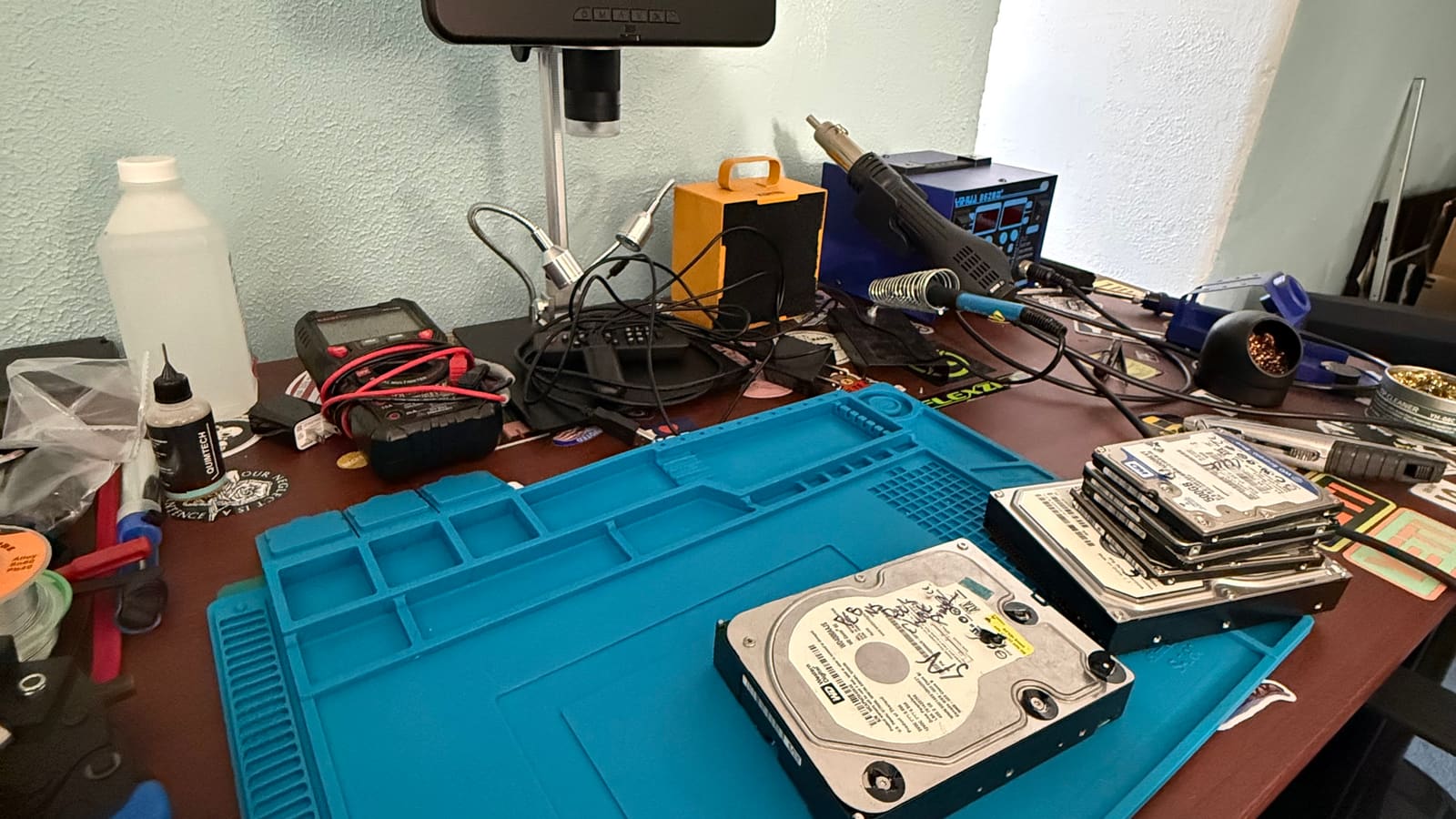
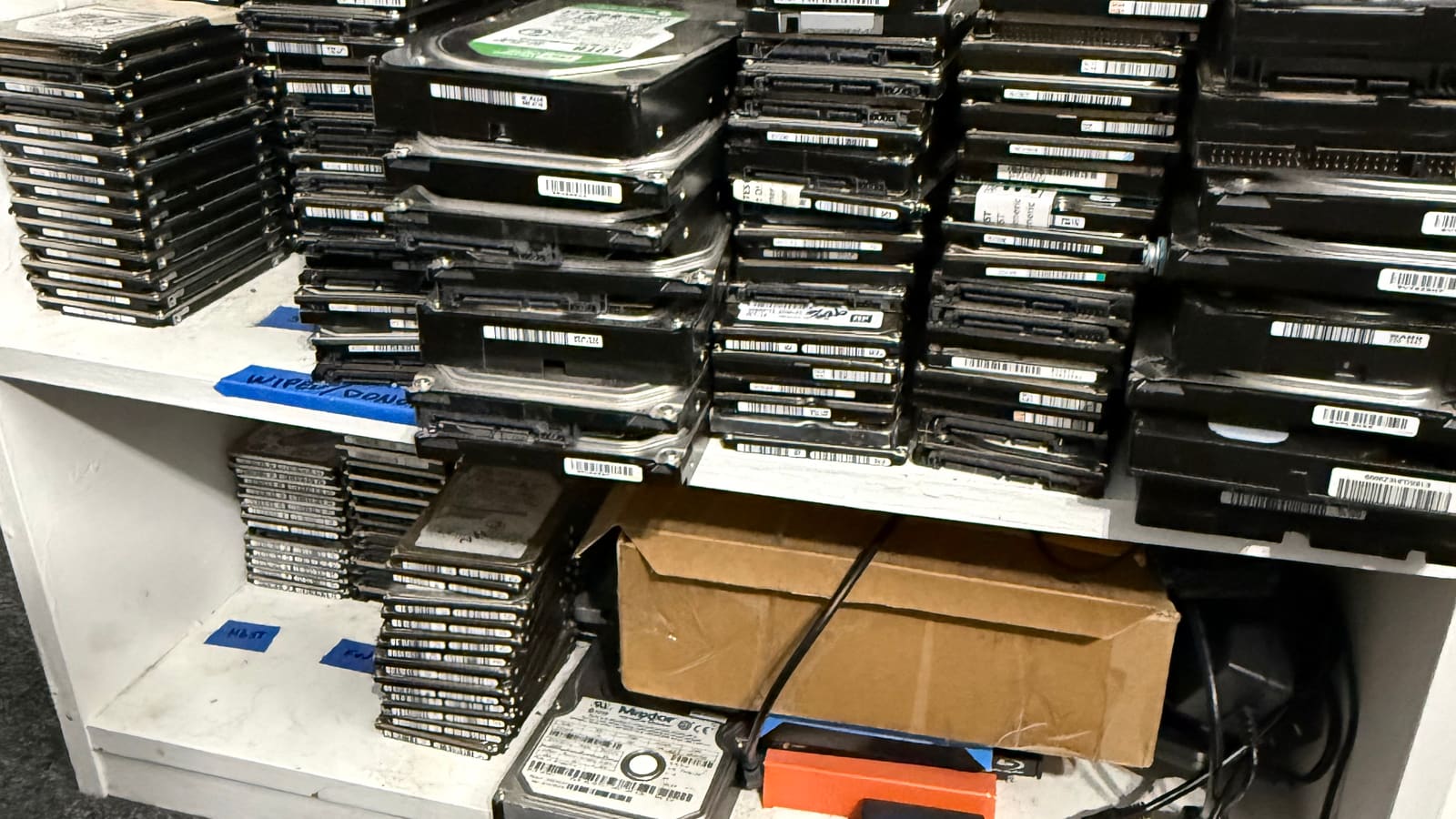
Nothing staged. This is the working bench: imaging rigs with hardware write protection, board-level rework under a microscope, and a donor library for PCB swaps and parts matching.
What to do right now — Pittsburgh or anywhere
- 01. Stop using the drive. Every write risks overwriting recoverable data.
- 02. Don't install recovery software on the failing drive itself.
- 03. Don't freeze the drive. That's a myth from the 1990s and it doesn't work on modern drives.
- 04. Fill out the intake form. Describe what happened, what you've tried, what device you have.
- 05. I'll respond within 24 hours with a preliminary assessment and next steps.
From the bench
Read up before you decide
No sales pitch in any of these. If one of them saves you a call, that's a good outcome.
- What to do in the first hour The checklist that decides how much survives. Start here.
- Should you run CHKDSK? The internet's favourite advice, and why it costs people their files.
- What are the odds? Honest recovery rates by failure type, not a marketing average.
- How long does it take? Real turnaround ranges and what actually sets them.
- When not to pay for recovery Six situations where my honest advice is to keep your money.
- What happens to your files What I see, what I keep, and what to ask any lab.